Refresh Rate Test: Check Your Monitor’s Actual Hz & FPS.
Welcome to our free refresh rate test! This tool measures your display’s actual refresh rate (Hz), live FPS (frames per second), and frame timing stability, all directly in your browser. No downloads, no signups, just instant results.
Tips for Accurate Results
- Close other tabs and applications
- Disable power-saving mode
- Use Fullscreen Mode for best results
- Keep this tab active and visible
- Try different browsers to compare
Refresh Rate Visual Comparison
See how different FPS levels affect motion smoothness
Understanding Your Refresh Rate Results
Once the Refresh rate test is complete, you’ll see several important metrics. Here’s what each one tells you:
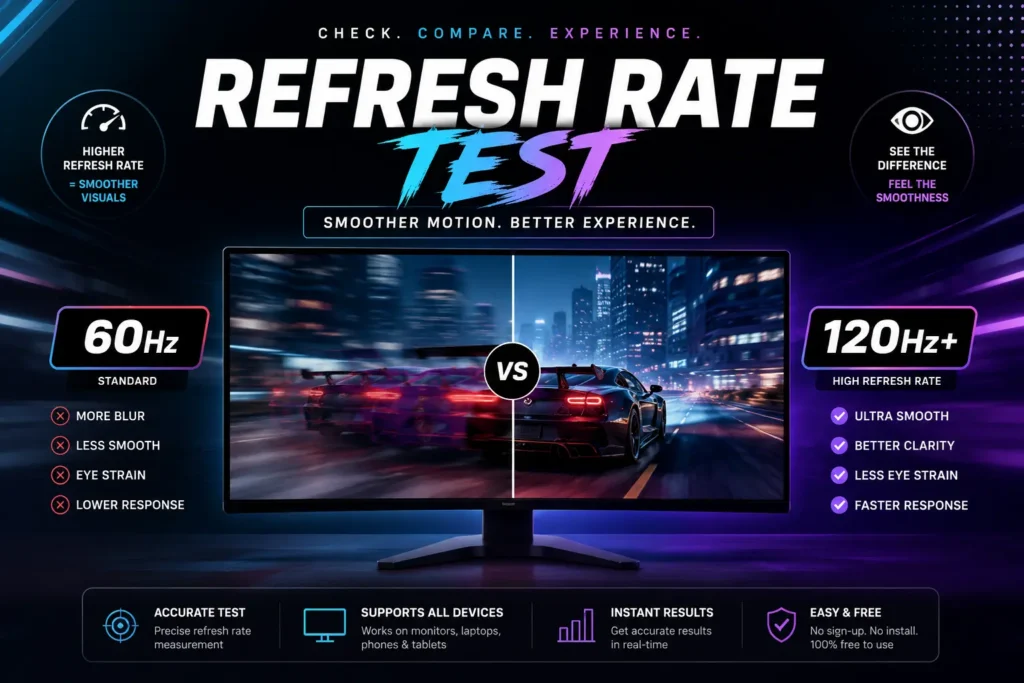
Estimated Refresh Rate (Hz)
This is your monitor’s actual refresh rate, the number of times your screen updates the image every second.
60 Hz – Your screen updates 60 times per second (standard displays).
144 Hz – Screen updates 144 times per second (gaming monitors).
240 Hz – Screen updates 240 times per second (high-end esports displays).
However, if your 144Hz monitor is displaying only 60Hz or 120Hz, something’s wrong. Scroll down to the troubleshooting section to resolve the issue.
Live FPS (Frames Per Second)
This shows how many frames your browser is rendering during the test. Ideally, this should closely match your refresh rate. For Example:
If your FPS is much lower than your refresh rate, try these quick fixes:
- Switch to full-screen mode
- Test the tool in another browser (Firefox usually gives the most accurate results)
- Close background applications
- Turn on hardware acceleration in your browser settings
Jitter (Frame Stability)
Jitter measures how consistent your frame timing is. It’s shown in milliseconds (ms), and lower is always better.
Under 1 ms = Excellent stability (smooth as butter).
1-3 ms = Good stability (acceptable for most uses).
5+ ms = Poor stability (you’ll notice stuttering).
Frame Interval Graph
Some tests display a visual graph showing frame timing consistency. A flat, steady line means rock-solid performance. Lots of spikes and valleys indicate dropped frames or timing issues.

What Is Refresh Rate Tester? (Quick Explanation)
Your monitor's refresh rate (measured in Hz) is how many times per second it can display a new image. It's like a flipbook: the faster you flip the pages each second, the smoother the motion feels.
Common Refresh Rates
60HZ
Standard for everyday monitors, laptops, and TVs
Basic
120Hz
Found on smartphones and mid-range gaming displays
Good
144Hz
The gaming sweet spot (huge upgrade from 60Hz)
Best value
240Hz
The gaming sweet spot (huge upgrade from 60Hz)
Pro Gaming
360HZ
The gaming sweet spot (huge upgrade from 60Hz)
Elite
💡 Important: To take full advantage of a higher refresh rate monitor, your system needs to output enough frames per second (FPS). For example, a 144Hz monitor needs at least 144 FPS to show its full smoothness potential.
Refresh Rate vs Frame Rate: What's the Difference?
This confuses a lot of people, so let's clear it up:
Refresh Rate (Hz) – How fast your monitor can display images.
Frame Rate (FPS) – How fast your computer's GPU renders images.
Your GPU creates the frames, and your monitor displays them. For the smoothest experience, both should match.
Example: Your GPU renders Valorant at 200 FPS, but your monitor only refreshes at 60Hz. What happens? You only see 60 of those 200 frames; the other 140 are wasted. Your eyes never see them.
That's why gamers pair powerful GPUs with high refresh rate monitors. When your GPU outputs 144 FPS and your monitor runs at 144Hz, everything syncs perfectly for buttery-smooth gameplay.
Why Should You Test Your Refresh Rate?
You might be thinking, “My monitor box says 144Hz, so obviously it’s running at 144Hz, right?” Not always! Here’s why testing matters:
Bottom line: Don’t just trust the marketing claims. Test it yourself and know exactly what you’re getting.
Common Problems & How to Fix Them
Ran the test, and your results look weird? Don’t worry, most issues have simple fixes. Here are the most common problems:
Problem #1: My 144Hz Monitor Only Shows 60Hz
This is the most common issue, and usually an easy fix.
Step1: Check Your Cable
|
Cable Type |
Max @ 1080p |
Max @ 1440p |
Max @ 4K |
|
HDMI 1.4 |
120Hz |
75Hz |
30Hz |
|
HDMI 2.0 |
240Hz |
144Hz |
60Hz |
|
HDMI 2.1 |
360Hz+ |
240Hz |
120Hz |
|
DisplayPort 1.2 |
240Hz |
165Hz |
75Hz |
|
DisplayPort 1.4 |
360Hz+ |
240Hz |
120Hz |
If you’re using HDMI 1.4, you’re limited to 120Hz at 1080p. Upgrade to HDMI 2.0 or higher, or better yet, use DisplayPort for PC gaming.
Step 2: Change Windows Display Settings
Right-click desktop → Display Settings
Scroll → Advanced Display
Choose the highest Refresh Rate
Click “Keep Changes”
If 144Hz doesn’t appear, cable or GPU drivers are likely the issue.
Step 3: Update GPU Drivers
Outdated drivers can prevent higher refresh rates from showing up:
NVIDIA GPUs: Download GeForce Experience → Check for driver updates
AMD GPUs: Download AMD Adrenalin Software → Check for updates
After updating, restart your computer and check the display settings again.
Problem #2: Browser Test Shows Lower FPS Than Expected
Your monitor is set to 144Hz in Windows, but our test only shows 60-80 FPS? Here’s why:
Solution 1: Use Fullscreen Mode
Browsers often throttle animations in regular windows to save resources. Click the full-screen button during the test for accurate results.
Solution 2: Try a Different Browser
Not all browsers handle animation timing equally:
- Firefox – Usually gives the most accurate refresh rate results
- Chrome – Good, but can throttle on laptops
- Microsoft Edge – Similar to Chrome (same engine)
- Safari (Mac) – Can be inconsistent; try Firefox instead
Problem #3: Screen Tearing and Stuttering During Games
Screen tearing is that annoying horizontal line that appears during fast motion, making the image look split. Stuttering moves feel jerky instead of smooth. Both happen when your GPU’s frame output doesn’t sync with your monitor’s refresh rate.
The Fix: Enable G-Sync or FreeSync
These technologies (called Variable Refresh Rate or VRR) make your monitor dynamically match your GPU’s frame rate, eliminating tearing and stuttering.
To Enable G-Sync (NVIDIA GPUs):
Browsers often throttle animations in regular windows to save resources. Click the full-screen button during the test for accurate results.
- Right-click your desktop
- Open NVIDIA Control Panel
- Go to “Set up G-Sync”
- Check “Enable G-Sync”
- Select your monitor from the list
- Click Apply
To Enable FreeSync (AMD GPUs):
- Right-click your desktop
- Open AMD Adrenalin Software
- Navigate to Display settings
- Toggle “AMD FreeSync” to ON
- You may also need to enable FreeSync on your monitor using its physical buttons (OSD menu)
Note: Many FreeSync monitors are now “G-Sync Compatible,” meaning NVIDIA GPUs can use them too.
Once enabled, G-Sync or FreeSync will eliminate screen tearing and make gameplay incredibly smooth, even when your FPS fluctuates.